
Changing your website design can feel stressful. Many people worry they will lose posts, break layouts, or damage SEO. The good news? You can change WordPress theme safely. If you follow the correct steps, you will not lose content or traffic.
In this guide, you’ll learn:
- What happens when you switch WordPress theme
- How to change theme in WordPress dashboard
- How to change WordPress theme without losing customization
- What to check after activation
Let’s start.
What Happens When You Change WordPress Theme?
First, understand what changes and what stays the same.
What Stays Safe
When you change WordPress theme, you keep:
- Blog posts
- Pages
- Images
- Comments
- Plugins
All your content stays inside the WordPress database.
What May Change
However, some design elements may reset:
- Widget placement
- Menu position
- Homepage layout
- Theme settings
- Custom CSS
So, your content is safe. Your layout may need adjustments.
Before You Change WordPress Theme (Important Checklist)
If you want to change WordPress theme without losing content, follow this checklist first.
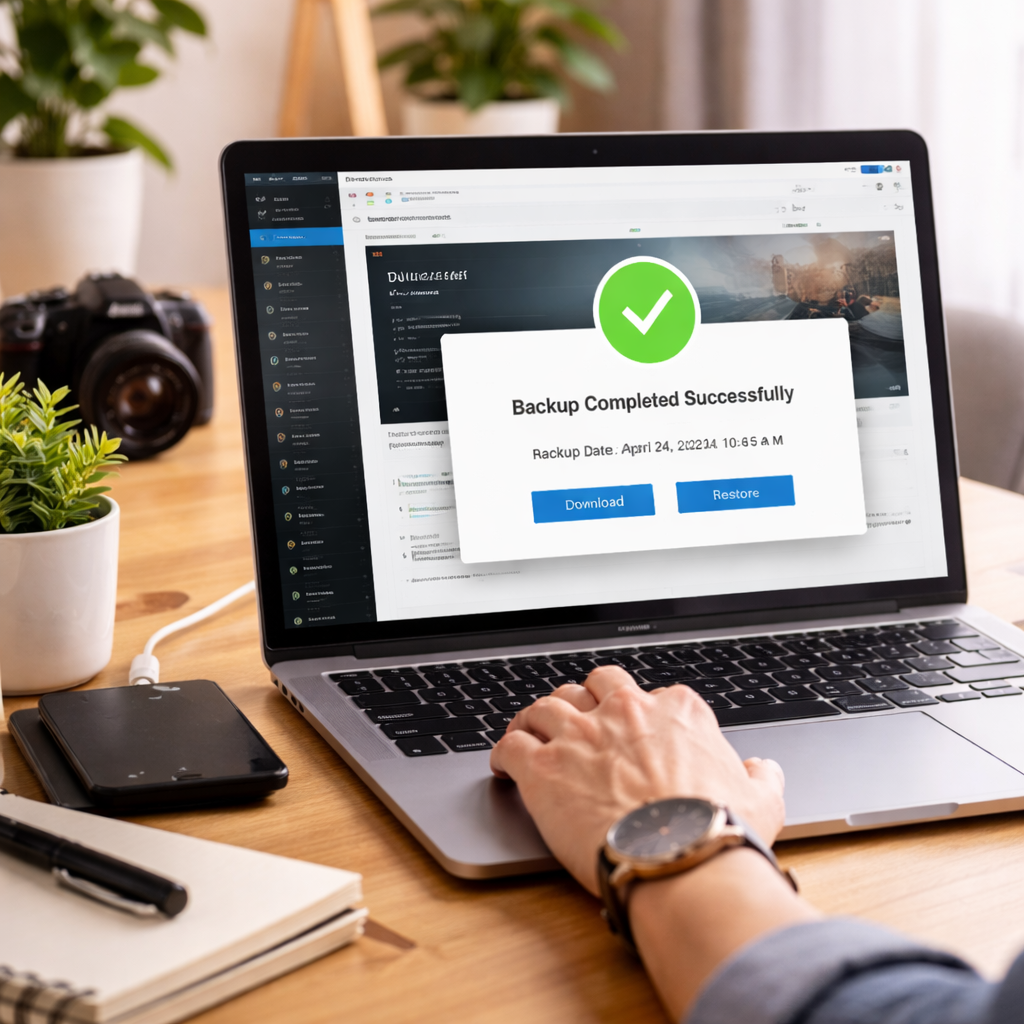
1. Back Up Your Website
Always create a full backup. Use a backup plugin or your hosting control panel. This protects your site if something goes wrong.
2. Test on a Staging Site
If possible, test the new theme on a staging site. This helps you switch WordPress theme safely without downtime.
3. Save Custom CSS
If you added custom code in the WordPress Customizer, copy it and save it in a document.
4. Take Screenshots of Widgets
Widgets often move after a WordPress theme change. Screenshots help you restore them quickly.
5. Check Plugin Compatibility
Make sure your new theme works with your page builder, SEO plugin, and important tools.
How to Preview WordPress Theme Before Activating
You do not have to activate a theme immediately.
To preview:
- Go to Appearance → Themes
- Hover over a theme
- Click Live Preview
Now you can test layout, fonts, colors, and mobile design.
This step helps you test WordPress theme before going live. It reduces mistakes.
How to Change WordPress Theme (Step by Step)
Now let’s look at how to change WordPress theme in the easiest way.
Step 1: Open Appearance → Themes
Step 2: Click “Add New” (if needed)
Step 3: Install the theme
Step 4: Click “Activate”
That’s it. Your theme change is complete.
However, your job is not finished yet.
How to Change WordPress Theme on a Live Site
If your website gets regular traffic, be careful.
Here’s how to switch WordPress theme without downtime:
- Activate maintenance mode
- Change theme during low traffic hours
- Use staging before activating
This method helps you change theme safely on a live site.
How to Change WordPress Theme Using cPanel or FTP
Sometimes, your dashboard may not work.
In that case, you can change WordPress theme in cPanel.
Using cPanel:
- Log into your hosting account
- Open File Manager
- Go to wp-content → themes
- Upload new theme folder
After uploading, activate it inside WordPress.
You can also use FTP for the same process.
After Changing Theme: What You Must Check
This step protects your SEO and design.
Reassign Menus
Go to Appearance → Menus and select your primary menu location.
Restore Widgets
Move widgets back to sidebar or footer.
Set Homepage Again
Go to Settings → Reading and choose your homepage.
Check Mobile View
Make sure your site looks good on phones.
Test SEO Elements
Many users ask: does changing WordPress theme affect SEO?
Usually, no. But check:
- Page speed
- Heading structure
- Schema markup
- Internal links
If everything looks fine, your SEO stays safe.
Common Problems After Switching Themes
Even when you follow steps, small issues may appear.
Broken Layout
Cause: Old shortcodes
Fix: Replace with block editor or page builder elements.
Missing Widgets
Cause: New widget areas
Fix: Reassign them manually.
Custom Design Lost
Cause: Theme-specific settings
Fix: Reapply saved CSS.
Frequently Asked Questions
Will I lose my content if I change WordPress theme?
No. Your posts and pages stay safe.
Can I switch back to my old theme?
Yes. Simply reactivate it from the Themes section.
How long does it take to change a theme?
Usually less than 10 minutes.
Can I change WordPress theme without losing customization?
Yes. Save CSS and test first.
Final Thoughts
Now you know how to change WordPress theme step by step. The process is simple. The key is preparation. Back up your site. Test the theme. Activate carefully. Then review settings. When done correctly, you can improve design, speed, and user experience — without losing content or SEO.
Switch smart. Stay safe.