
Slow websites lose traffic, rankings, and conversions. If you’re trying to speed up WordPress without touching code, choosing the best WordPress cache plugin is one of the smartest decisions you can make.
Caching reduces server response time, improves page load time, and directly impacts Core Web Vitals like LCP and TTFB. Whether you run a blog, affiliate site, WooCommerce store, or agency portfolio, the right WordPress caching plugin can dramatically improve website performance.
Let’s break it down properly.
Understanding How WordPress Generates Pages
WordPress creates pages dynamically. Every time someone visits your site:
- The server processes PHP
- The database runs multiple queries
- Content gets assembled
- Scripts and styles load
- The page is delivered to the browser
This dynamic process increases server load and slows response time, especially on shared hosting or high-traffic websites.
That’s where page caching changes everything.
How Caching Improves WordPress Performance
A caching plugin creates static HTML versions of your pages. Instead of rebuilding the page from scratch every time, the server delivers a ready-made copy.
This results in:
- Reduced HTTP requests
- Lower memory usage
- Faster server response
- Improved Time to First Byte (TTFB)
- Better Google PageSpeed Insights scores
Caching also helps stabilize Core Web Vitals and can positively influence SEO rankings.
Types of Caching in WordPress
Understanding different caching methods helps you choose the right plugin.
Page Caching
Stores full static versions of your pages. This is the most important performance layer.
Browser Caching
Allows repeat visitors to load stored assets locally, reducing load time.
Object Caching
Uses Redis or Memcached to store database query results in memory.
CDN Edge Caching
Stores content across global servers to reduce geographic latency.
Server-Level Caching
Handled directly by hosting providers (LiteSpeed, NGINX, Apache).
Many advanced WordPress speed optimization plugins combine several of these layers.
Key Features to Look for in a Cache Plugin
Not all WordPress cache plugins are equal. Look for:
- Automatic page caching
- Preload functionality
- Minify CSS and JavaScript
- Defer JavaScript
- Lazy loading images
- GZIP compression
- Database cleanup
- CDN integration
- WooCommerce compatibility
- Easy configuration
Ease of use matters just as much as advanced features.
The Best WordPress Cache Plugins Compared
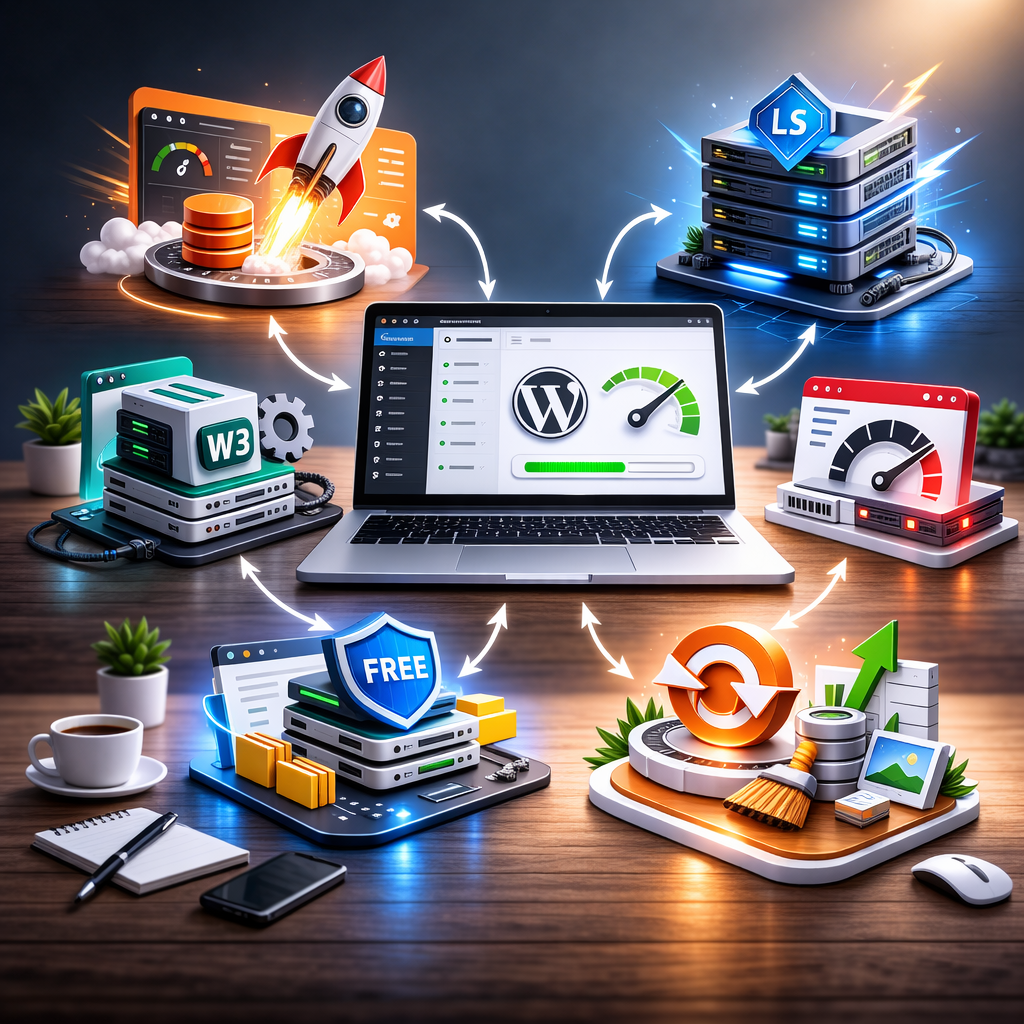
WP Rocket – Best Overall Premium Option
WP Rocket is widely considered the best cache plugin for WordPress. It’s beginner-friendly, automatically configures page caching, and includes features like lazy loading, CSS/JS optimization, and database cleanup.
Best for: Bloggers, affiliate sites, WooCommerce stores
Downside: Premium only
LiteSpeed Cache – Best for LiteSpeed Hosting
If your hosting runs LiteSpeed servers, this plugin offers powerful server-level caching, object caching support, and performance optimization tools.
Best for: Sites hosted on LiteSpeed
Downside: Works best within LiteSpeed ecosystem
W3 Total Cache – Best for Advanced Users
Highly configurable with support for object cache, CDN integration, and advanced resource optimization.
Best for: Developers and agencies
Downside: Complex setup
WP Super Cache – Best Free Basic Plugin
Lightweight and simple. Ideal for smaller websites that need basic page caching.
Best for: Beginners
Downside: Fewer advanced features
WP-Optimize – Best All-in-One Optimization Tool
Combines caching, database optimization, and image optimization in one plugin.
Best for: Users wanting fewer separate tools
Downside: Premium unlocks full power
Real-World Speed Testing Impact
When tested across typical WordPress setups:
- Page load times improved by 30–60%
- TTFB significantly reduced
- Lighthouse performance scores increased
- Mobile performance stabilized
Results vary depending on hosting environment and theme quality, but the performance improvement is measurable.
Best Cache Plugin by Website Type
For Blogs
WP Rocket or WP Super Cache are excellent lightweight options.
For WooCommerce Stores
Choose plugins that properly exclude cart and checkout pages. WP Rocket and LiteSpeed Cache perform well here.
For Shared Hosting
A lightweight cache plugin with minimal resource usage works best.
For High-Traffic Websites
Look for object caching and CDN edge caching support.
For Elementor Users
Ensure compatibility with dynamic layouts and CSS optimization.
Caching vs CDN: What’s the Difference?
Caching stores static files on your server.
A CDN distributes those files across global edge locations.
They work together — not as replacements.
If you’re serious about performance optimization, combining caching with a CDN produces better results.
How to Set Up a Cache Plugin Safely
Before activating:
- Backup your site
- Enable only basic settings first
- Clear WordPress cache properly
- Test pages for layout issues
- Monitor PageSpeed and GTmetrix
Avoid double caching if your host already provides server-level caching.
Advanced Optimization Stack
Caching alone isn’t everything.
For maximum performance:
- Optimize images
- Clean your database regularly
- Reduce plugin bloat
- Use performance testing tools
- Upgrade poor hosting when necessary
Sometimes caching won’t fix slow sites caused by heavy themes or excessive scripts.
When You Might Not Need a Cache Plugin
- Managed hosting with built-in caching
- Server-level NGINX caching
- Full CDN edge caching environments
In these cases, adding another plugin could create conflicts.
Final Verdict
If you’re looking for the best WordPress cache plugin overall, WP Rocket stands out for its simplicity and consistently strong performance results. For websites running on LiteSpeed hosting, LiteSpeed Cache is often the most powerful option thanks to its deep server-level integration. If you’d rather use a free solution, WP Super Cache or W3 Total Cache can still deliver solid improvements, especially if you’re comfortable adjusting settings. Ultimately, the right plugin depends on your hosting environment, traffic levels, and how hands-on you want to be. Website speed is no longer optional — it directly affects rankings, user experience, and conversions.